> For the complete documentation index, see [llms.txt](https://docs.overleaf.com/llms.txt). Markdown versions of documentation pages are available by appending `.md` to page URLs; this page is available as [Markdown](https://docs.overleaf.com/groups/overleaf-group-single-sign-on/setting-up-group-sso/step-3-verify-the-connection-between-your-idp-and-overleaf.md).

# Step 3: Verify the connection between your IdP and Overleaf

Testing the trust relationship and configuration that has been set up between your IdP and Overleaf involves logging in through your IdP through the testing interface provided by Overleaf. The user account for this test does not need to be invited to the Overleaf group subscription.

Any valid user account in your IdP can be used to test the SSO setup in Overleaf. No data will be saved for this test account, and no Overleaf account will be created for the test user during the testing phase.

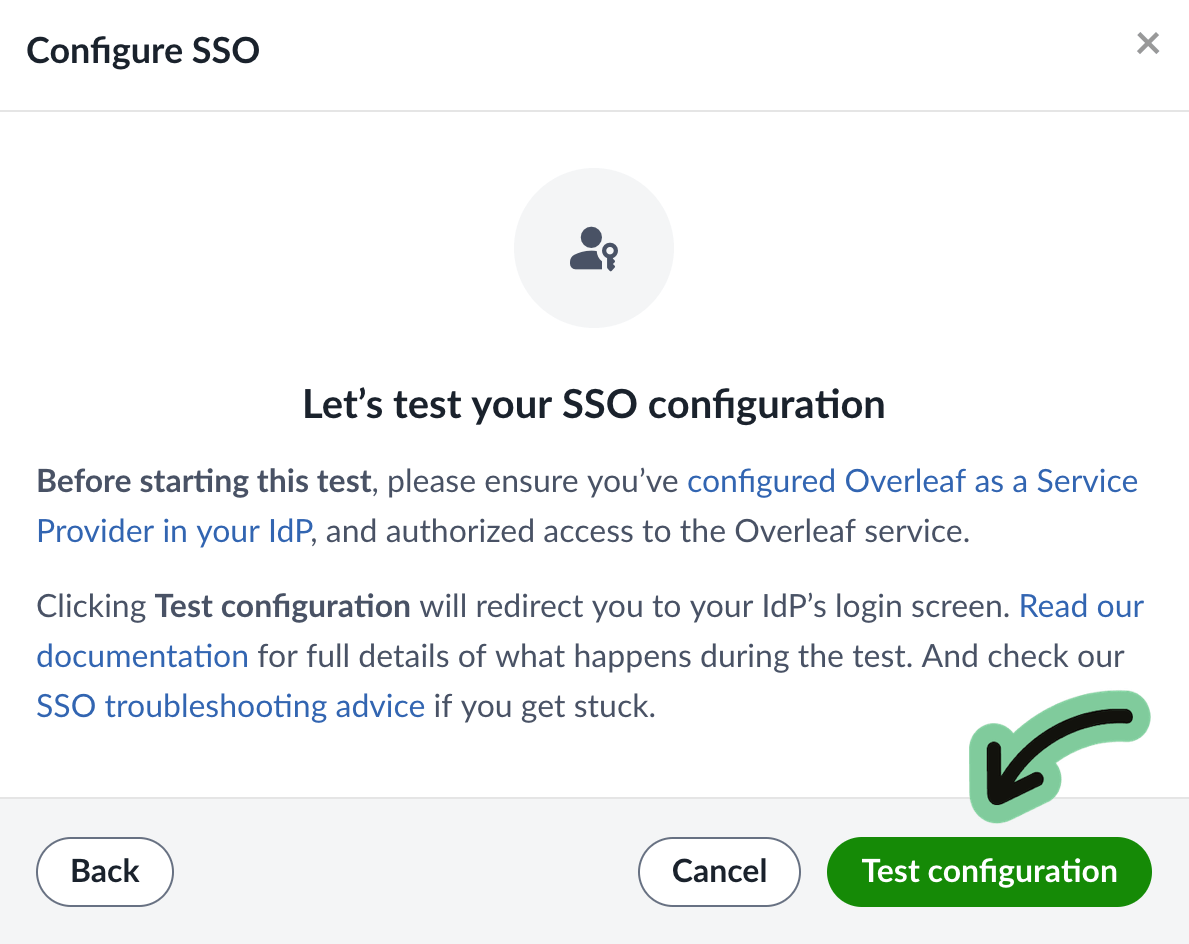
To proceed with the test, click the button on the test screen to be redirected to your IdP to log in.

<figure><img src="https://images.ctfassets.net/nrgyaltdicpt/tfFQJ0dUVQRkHU7EJv7rL/4f8bfc9e0cf6c59ab69889668a11007e/test-config.png" alt="" width="375"><figcaption></figcaption></figure>

* If after clicking on Test configuration you arrive at your IdP login screen, provide the username and credentials for your test user and log in as usual.
* If you do not see your login page, but see some form of error, don't panic! Errors are not uncommon at this stage. Please see our [test troubleshooting guide](/groups/overleaf-group-single-sign-on/setting-up-group-sso/step-3-verify-the-connection-between-your-idp-and-overleaf/group-sso-test-troubleshooting.md).

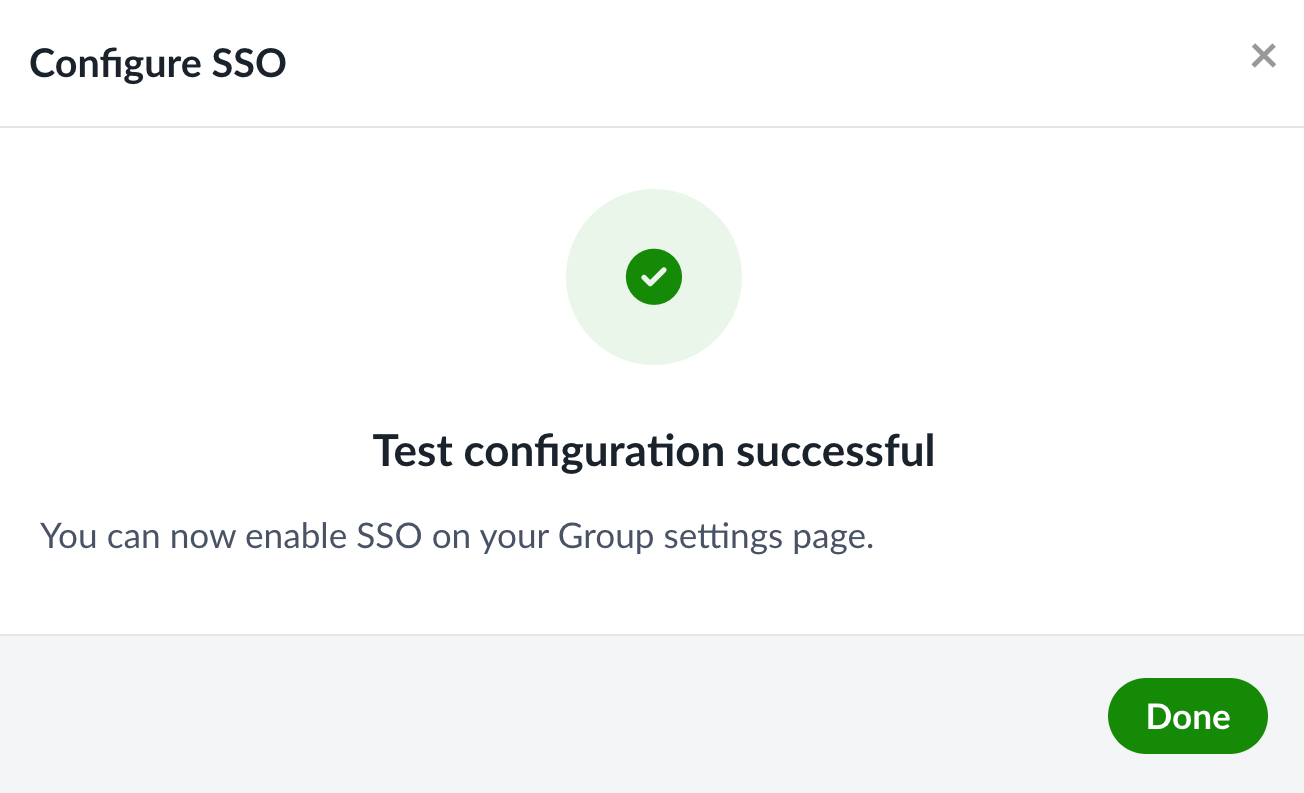
After logging in, you may see a screen that reports a successful test. If so, that’s great—you can now enable SSO for your team.

If you see an error or a warning from the Overleaf test validation page saying that something went wrong, please see [our test troubleshooting guide](/groups/overleaf-group-single-sign-on/setting-up-group-sso/step-3-verify-the-connection-between-your-idp-and-overleaf/group-sso-test-troubleshooting.md).

<figure><img src="https://images.ctfassets.net/nrgyaltdicpt/19pkcqQ1R7WiqAGRopoLSn/20fd1b9afde96ba0b1b4885aa9513996/sso-successful-test.png" alt="" width="375"><figcaption></figcaption></figure>

## **How did it go? Checklist for “Testing”**

* [x] All errors and warnings identified by the Test configuration process have been addressed.
* [x] A successful test has been reported.

If you're having trouble, please review the [test troubleshooting guide](/groups/overleaf-group-single-sign-on/setting-up-group-sso/step-3-verify-the-connection-between-your-idp-and-overleaf/group-sso-test-troubleshooting.md). Fixing problems may require adjusting the configuration in your IdP and in Overleaf. If you are unable to complete the test, please [get in touch](https://www.overleaf.com/contact).
---

# Agent Instructions
This documentation is published with GitBook. GitBook is the documentation platform designed so that both humans and AI agents can read, navigate, and reason over technical content effectively. Learn more at gitbook.com.

## Querying This Documentation
If you need additional information that is not directly available in this page, you can query the documentation by asking a question.

Perform an HTTP GET request on the following URL with the `ask` and `goal` query parameters:

```
GET https://docs.overleaf.com/groups/overleaf-group-single-sign-on/setting-up-group-sso/step-3-verify-the-connection-between-your-idp-and-overleaf.md?ask=<question>&goal=<user_goal>
```

`ask` is the immediate question: it should be specific, self-contained, and written in natural language.
`goal` is what the user is ultimately trying to achieve, the reason they need the answer. Sharing it helps GitBook give you a better, more relevant answer. A goal is most helpful when it describes the outcome the user wants rather than restating the question. For example, with `ask=how do I create an API token`, a goal like `automate deployments from our CI pipeline` lets GitBook tailor the answer to that use case.

The response will contain a direct answer to the question and relevant excerpts and sources from the documentation.

Use this mechanism when the answer is not explicitly present in the current page, you need clarification or additional context, or you want to retrieve related documentation sections.
