> For the complete documentation index, see [llms.txt](https://docs.overleaf.com/llms.txt). Markdown versions of documentation pages are available by appending `.md` to page URLs; this page is available as [Markdown](https://docs.overleaf.com/navigating-in-the-editor/editor-display-font.md).
# Editor display font
The font displayed in the Code and Visual Editors can be adjusted to help provide a better editing experience. Options for adjusting the font display can be found in the editor settings.
{% columns %}
{% column width="50%" %}
Option 1: Gear icon
{% endcolumn %}
{% column width="50%" %}
Option 2: File menu
{% endcolumn %}
{% endcolumns %}
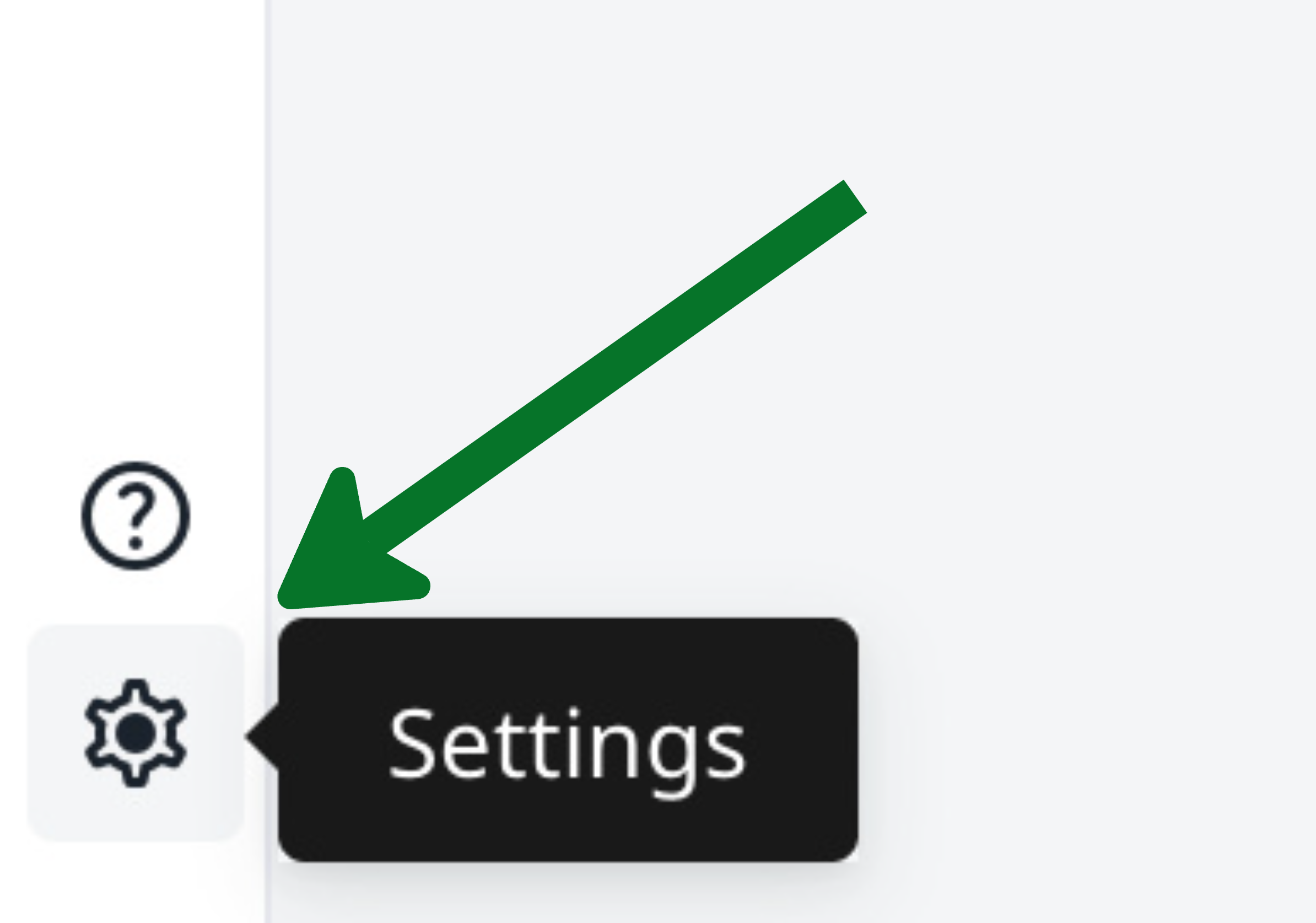
Select the icon in the bottom-left corner of the editor, or go to **File** > **Settings**, then select **Appearance** in the Settings sidebar. This should bring you to the [Editor font size](#editor-font-size), [Editor font family](#editor-font-family), and [Editor line height](#editor-line-height) options.
## Editor font size
It is strongly recommended to primarily use the Editor font size option, rather than your browser view or zoom options, to adjust the font sizes. Font size changes are applied to both the Code and Visual editors. The options range from **10px** to **24px**.
{% hint style="success" %}
You can adjust the zoom level of your output PDF using controls in the preview panel itself. Please see [PDF viewer options and navigation](/navigating-in-the-editor/working-with-the-pdf-viewer/pdf-viewer-options-and-navigation.md).
{% endhint %}
{% hint style="warning" %}
Note that Overleaf is optimized only for an "actual size" or "100%" browser zoom level — thus, your browser's zoom level should only be adjusted *after* making changes to the editor font size.
{% endhint %}
## Editor font family
The Editor font family option sets the font family of the text in the Code Editor. You can select either **Monaco / Menlo / Consolas**, **Lucida / Source Code Pro**, or **OpenDyslexic Mono**.
{% hint style="success" %}
The OpenDyslexic Mono font family is provided in order to help make the Code Editor more accessible.
{% endhint %}
{% hint style="warning" %}
You may experience some cursor misalignments when your computer doesn't have suitable fonts or if you're working with certain languages such as Thai, Japanese, or Cyrillic. In these cases, you may want to try changing the font family setting here.
{% endhint %}
## Editor line height
The Editor line height option allows you to adjust how much space appears between lines of text or code that you write in the editor. You can select either **Compact**, **Normal**, or **Wide**.