# Adding citations and references

This page explains Overleaf’s features for searching references within your project’s `.bib` files and reference managers linked to premium accounts. To learn how to link reference managers to your Overleaf account, visit our articles on [Mendeley](/integrations-and-add-ons/reference-manager-integrations/mendeley.md), [Zotero](/integrations-and-add-ons/reference-manager-integrations/zotero.md), and [Papers](/integrations-and-add-ons/reference-manager-integrations/papers.md).

## How can Overleaf help to find and cite references?

Overleaf provides two styles of search to streamline finding and citing references:

* [Simple search](https://docs.overleaf.com/citing-and-references/adding-citations-and-references/searching-for-references#how-to-use-simple-search): available to all users, simple search lets you browse and filter a list of the citation keys contained in your project’s `.bib` file(s).
* [Advanced reference search](https://docs.overleaf.com/citing-and-references/adding-citations-and-references/configuring-advanced-reference-search): available to premium accounts via the Overleaf Menu option [Reference search](#how-to-select-a-reference-search-style-premium-feature). It generates a list of references by searching your project’s `.bib` files and reference managers linked to your account.

Both search methods rely on Overleaf’s auto-completion to recognize citation commands as you type. Ensure auto-complete is enabled, or reference searching won’t work.

## How to enable Overleaf’s auto-complete

{% stepper %}
{% step %}
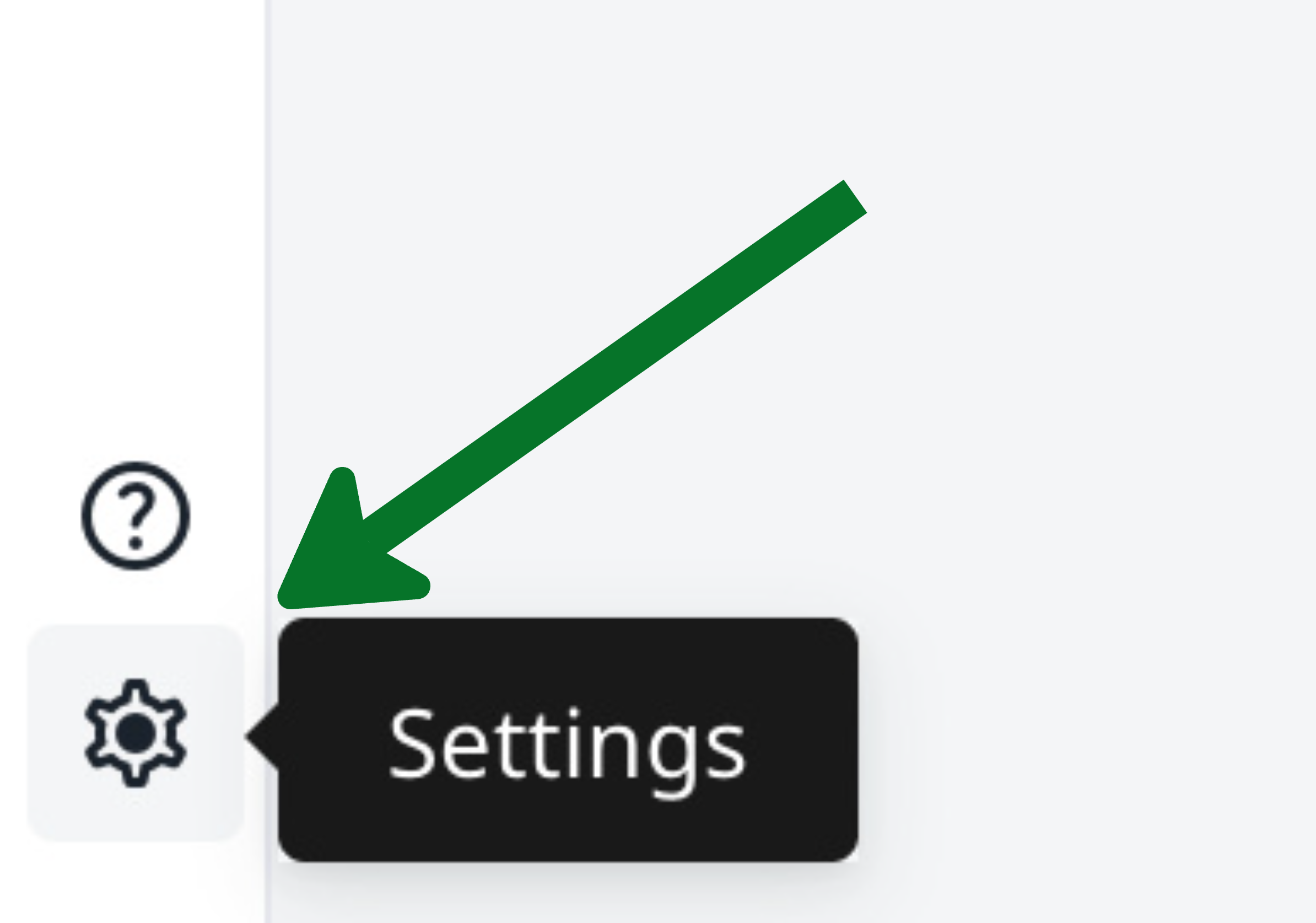
Select **Settings**.

<div align="center"><figure><picture><source srcset="/files/67mhFzK1NrR7dyynzNhG" media="(prefers-color-scheme: dark)"><img src="/files/Ld9oaos3kHcoAABg1Q4J" alt="Image of the Settings icon in the bottom-left corner of the editor" width="188"></picture><figcaption><p>Option 1: Gear icon</p></figcaption></figure></div>

<div align="center"><figure><picture><source srcset="/files/NdmiBW31Wt39gLzqFXxj" media="(prefers-color-scheme: dark)"><img src="/files/HIFX0hn5PZBjsNP9mGzP" alt="Settings option in File menu in the Overleaf editor" width="242"></picture><figcaption><p>Option 2: File menu</p></figcaption></figure></div>

{% endstep %}

{% step %}
Browse to **Editor** > **Auto-complete**, and ensure the toggle is set to enabled.

<figure><img src="/files/Bq0IOtq7mPFkntL2O22t" alt="Image showing how to configure Overleaf&#x27;s autocomplete feature" width="563"><figcaption><p>Overleaf's auto-complete setting</p></figcaption></figure>
{% endstep %}
{% endstepper %}

## How to select a reference search style (premium feature)

Premium accounts can configure their projects to use **simple search** or **advanced reference search** via the **Reference search** option in the main **Overleaf Menu**.

{% stepper %}
{% step %}
Select **Settings**.

<div align="center"><figure><picture><source srcset="/files/67mhFzK1NrR7dyynzNhG" media="(prefers-color-scheme: dark)"><img src="/files/Ld9oaos3kHcoAABg1Q4J" alt="Image of the Settings icon in the bottom-left corner of the editor" width="188"></picture><figcaption><p>Option 1: Gear icon</p></figcaption></figure></div>

<div align="center"><figure><picture><source srcset="/files/NdmiBW31Wt39gLzqFXxj" media="(prefers-color-scheme: dark)"><img src="/files/HIFX0hn5PZBjsNP9mGzP" alt="Settings option in File menu in the Overleaf editor" width="242"></picture><figcaption><p>Option 2: File menu</p></figcaption></figure></div>

{% endstep %}

{% step %}
Browse to **Editor** > **Reference search**.

<figure><img src="/files/TCZm4xhIL6pGwJGqUN0J" alt="Image of Overleaf&#x27;s reference search settings" width="563"><figcaption><p>Overleaf's reference search settings</p></figcaption></figure>
{% endstep %}

{% step %}
Select the Settings button to display the **Reference search settings** modal.

<figure><img src="/files/2Jr4N2XbsDM7iIwhnNg5" alt="Image of Overleaf&#x27;s Reference search settings modal" width="563"><figcaption><p>Overleaf's Reference search settings modal used to configure your search preferences</p></figcaption></figure>
{% endstep %}

{% step %}
Use the drop-down menu to select your preferred **Reference search style**.
{% endstep %}
{% endstepper %}

## Further reading

If you’d like to further explore topics related to using bibliographies in LaTeX, the following Overleaf articles may be of interest:

* [How to link Mendeley to your Overleaf account](/integrations-and-add-ons/reference-manager-integrations/mendeley.md#how-to-link-mendeley-to-your-overleaf-account)
* [How to link Zotero to your Overleaf account](/integrations-and-add-ons/reference-manager-integrations/zotero.md#how-to-link-zotero-to-your-overleaf-account)
* [How to link Papers to your Overleaf account](/integrations-and-add-ons/reference-manager-integrations/papers.md#how-to-link-papers-to-your-overleaf-account)
* [Creating and Managing Bibliographies with BibTeX on Overleaf](https://www.overleaf.com/blog/532-creating-and-managing-bibliographies-with-bibtex-on-overleaf)
* [Using bibliographies on Overleaf](https://www.overleaf.com/learn/how-to/Using_bibliographies_on_Overleaf)
* [Bibliography management in LaTeX](https://www.overleaf.com/learn/latex/Bibliography_management_in_LaTeX)


---

# Agent Instructions: Querying This Documentation

If you need additional information that is not directly available in this page, you can query the documentation dynamically by asking a question.

Perform an HTTP GET request on the current page URL with the `ask` query parameter:

```
GET https://docs.overleaf.com/citing-and-references/adding-citations-and-references.md?ask=<question>
```

The question should be specific, self-contained, and written in natural language.
The response will contain a direct answer to the question and relevant excerpts and sources from the documentation.

Use this mechanism when the answer is not explicitly present in the current page, you need clarification or additional context, or you want to retrieve related documentation sections.
